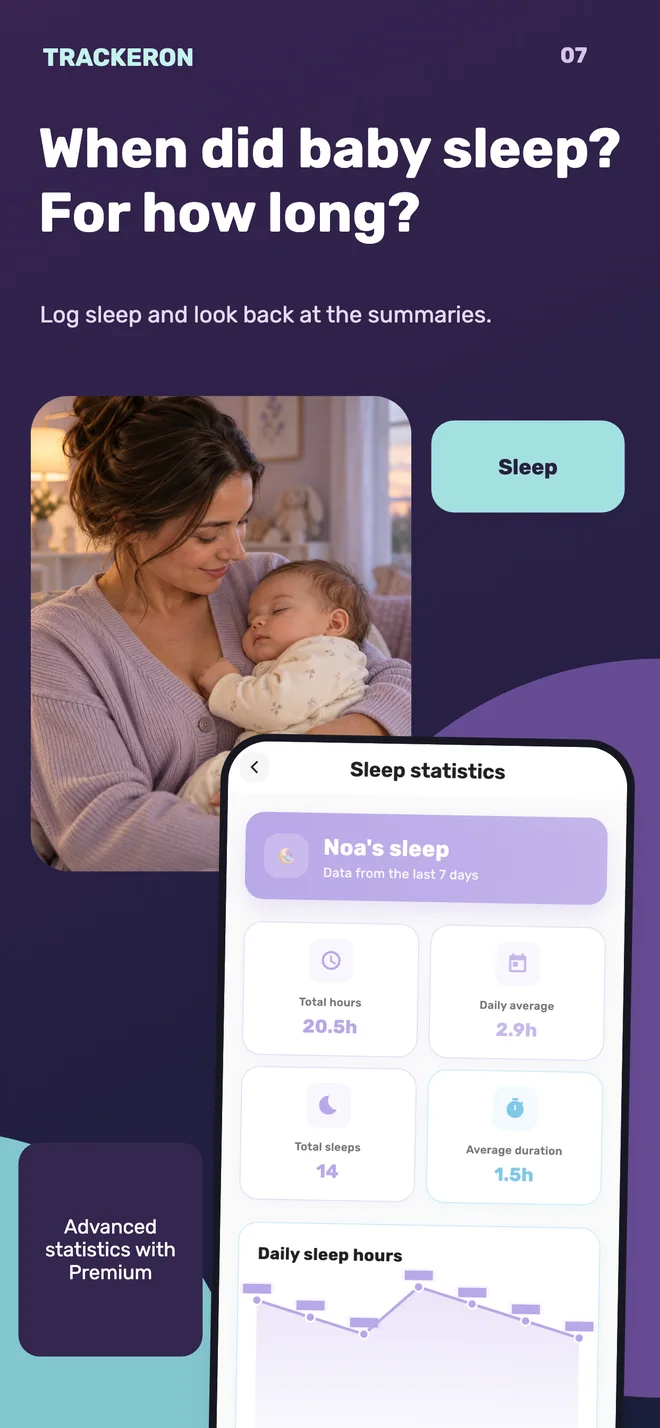
A baby sleep log app records what you observed: when a nap or overnight sleep period started, when it ended, and which details are still uncertain. In Trackeron, a sleep activity can contain start and end times or a duration in minutes, plus a note. This guide covers manually recording a completed sleep period. It is not a running-timer tutorial or a recommended sleep schedule.
General product information, not written by a doctor. A log does not diagnose a condition or replace individual medical advice. Discuss health concerns with your child's healthcare professional.
What belongs in a useful sleep entry?
You do not need to reconstruct every minute of the day. Start with a completed sleep period whose details you know. A daytime nap and an overnight period both use the Sleep activity. Use a note for context such as “afternoon nap”, “start time estimated” or “added after checking with the other caregiver”. These are your own descriptions, not separate app switches.
| Field | What to enter | What to check |
|---|---|---|
| Activity date and time | The relevant day and time | Do not accidentally leave the current time when adding an earlier event. |
| Sleep start and end | The times you observed | Choose the start first, then the end. |
| Sleep duration | Alternatively, a known number of minutes | Do not invent precise clock times if you only know the duration. |
| Additional notes | Estimates, interruptions and questions for a caregiver | A note explains uncertainty; it does not automatically change the calculation. |
How to add a completed sleep period in Trackeron
- Open the right baby's entry screen. Open “Add activity” for the baby and select “Sleep”. Check the profile before entering times, especially if you use more than one.
- Set the activity date and time. Choose the day on which the sleep period began and its corresponding time. Do this before selecting the sleep start and end, particularly when filling in last night's records.
- Choose one way to enter the duration. Under “Sleep details”, select “Sleep start” first and “Sleep end” second. The form calculates a duration. If only the duration is known, use “Sleep duration” in minutes in a new entry instead, leaving start and end unset.
- Add context. In “Additional notes”, you might write “start around 14:10; time supplied by grandparent”. That is a free-text note, not a special estimated-data setting.
- Check before saving. Compare the date, times and number of minutes. If you change the date or start, select the start and then the end again in that order. Check the duration especially carefully when the period crosses midnight.
- Finish and review the saved entry. Tap “Add activity”. When editing an existing activity, the button is “Update activity”. Look at the saved record rather than relying only on the duration previously shown in the form.
A fictional nap and a night crossing midnight
Every time below is invented. The example explains record keeping and arithmetic, not a suggested routine, an age-based sleep target or a real child's history. These are selected periods, not a complete day.
On a phone, swipe the table sideways to see every column.
| Period | Start | End | Duration | Note |
|---|---|---|---|---|
| Nap | 20 Nov, 14:10 | 20 Nov, 14:45 | 35 minutes | Both times observed. |
| Night, first period | 20 Nov, 23:40 | 21 Nov, 00:25 | 45 minutes | Ends on the following day. |
| Night, second period | 21 Nov, 00:50 | 21 Nov, 02:00 | 70 minutes | Separate entry after an observed waking period. |
For 23:40–00:25, choose 20 November as the activity date, then choose 23:40 as the start and 00:25 as the end. In this example, 00:25 is on the following day. Check the displayed 45 minutes, then check the saved record. Do not replace unknown times with 00:00–00:00.
The two night-time sleep periods add up to 115 minutes. The full interval from 23:40 to 02:00 is 140 minutes, however: the 25 minutes from 00:25 to 00:50 are an observed waking period in this example. Record two sleep periods rather than counting the entire interval as uninterrupted sleep. This calculation checks the record; it says nothing about how much sleep a baby needs.
What if you cannot remember a time?
If you know a reliable duration but not the exact start or end, enter the minutes and explain the missing clock times in a note. If the duration is uncertain too, do not enter zero or invent a number. Ask the person who was looking after the baby first. You can leave that period unrecorded until you have enough information rather than creating a falsely precise sleep entry.
For an approximate value, write “estimated” or “around”. A note does not automatically exclude a number from totals. If an estimated 40 minutes is entered as a duration, keep that uncertainty in mind when reviewing the sum. Similarly, a gap between entries does not establish that the baby was awake. It may simply mean a sleep period has not been entered. An observed waking period and an unexplained gap are different kinds of information.
Make the next handover specific
Before another caregiver takes over, answer three questions together: which period is complete, which time was estimated, and what still needs to be entered? Agree who will add a missing record so the same sleep is not entered twice. Sharing the diary with a partner, grandparents or a nanny is a Premium feature in Trackeron.
Compare records with a known scope. A partly recorded night is not equivalent to a fully recorded one. For sleep crossing midnight, check the individual dates and times before comparing daily summaries. A total alone cannot explain why a baby woke or diagnose sleep quality. The diary preserves information for a conversation; it does not decide what your baby should do.
What is free, and what needs Premium?
Basic sleep recording is part of Trackeron's free functionality. Family sharing, reminders and vaccination records belong to the paid Premium offering. Free recording does not mean every history view or advanced statistic is free. Check current limits and prices in the installed app or store; this guide does not quote an unverified local subscription price.
Start with one completed sleep period whose details you know. Check the saved entry and add a note for any estimated times, so you can understand the record later.